KEYWORDS: how to fix GMC errors fix Google Merchant Center issues handle google merchant center suspension google support
How to Quickly Fix the "Product Unavailable" Error on Google Merchant Center?
PPC
|
August 19, 2026
Do you feel that your products are suddenly missing from Google? Does your Google Merchant Center account show a scary red warning that says "Product Unavailable"? If so, you are not alone. Many store owners face this exact same problem every single day.
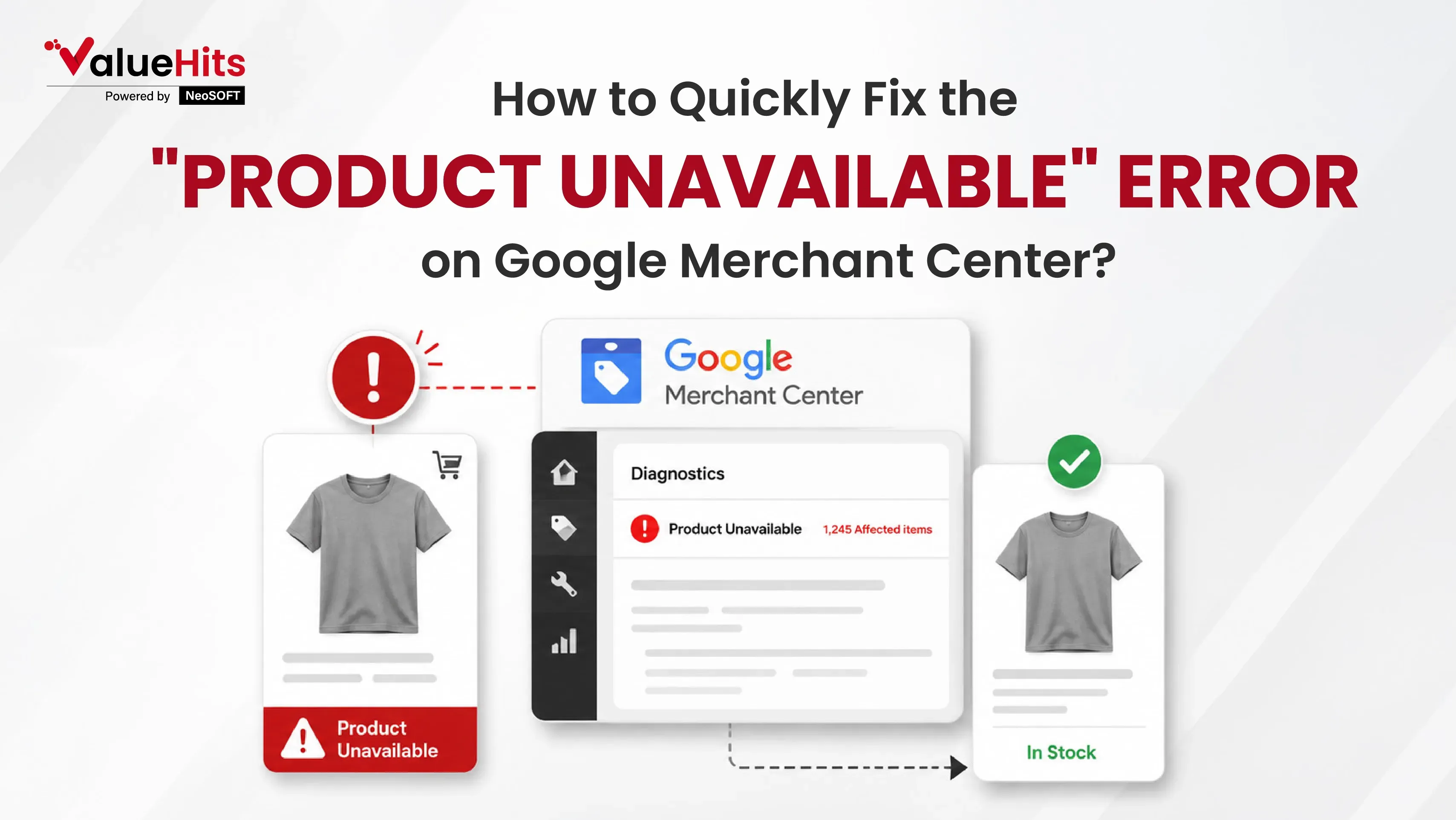
When your products stop showing up on Google, you lose clicks. When you lose clicks, you lose sales and money. Running an online store is hard work. You spend time setting up your ads. You take beautiful pictures of your items. You write great descriptions. Then, a weird technical error pauses everything.
Why does this happen? Google wants to give shoppers a great, safe experience. If Google thinks a web link is broken, they will pause your ad. They do this to protect buyers from clicking on bad links and getting mad. In this simple guide, we will learn exactly why this error happens. We will also learn how to fix it fast so you can get back to selling!
What Does "Product Unavailable" Actually Mean?
When you give Google your product list (called a product feed), you also give them web links to your items. Google sends a computer program called a "bot" to click all of those links. The bot checks to see if the page works, if the item is in stock, and if the price matches.
If the bot cannot see the page, it marks the product as "unavailable." It does not matter if the page works for you on your own home computer. If Google's bot cannot see the page, your ads will simply not show up.
New AI search engines work the exact same way. If your website is broken or hides things from bots, smart AI platforms will not trust your store. They will simply ignore you and recommend your competitors instead.
The Most Common Causes of the Error
There are a few main reasons why Google might fail to see your product page.
Let us have a look at the most common reasons that end up in an error:
| Error Name | What It Means | How to Fix It |
|---|---|---|
| 404 Page Not Found | The link you gave Google does not exist anymore. | Update the link in your feed to the correct product page. |
| 5xx Server Error | Your website server is down, broken, or too slow right now. | Check if your website is offline. Talk to your web host company. |
| Too Many Redirects | The link bounces around to too many new pages before finally loading. | Check and ensure that your link does not redirect more than once, or at max twice. |
| Blocked by Robots.txt | Your site settings accidentally tell Googlebots to stay away. | Delete the identified block from robots.txt file as then only Google would be able to read the page. |
| DNS or Hostname Error | Google cannot find your website's domain address at all. | Check your domain name settings with your hosting company. |
A Step-by-Step guide to help you quickly fix the issue:
Step 1: Check Price and Stock Match
Start by logging into your Google Merchant Center account. After logging in, on the left-side menu, click on "Products," and then head over to a tab that says "Needs attention". This pulls up a handy list of all the broken items that need your help. Once you spot them, do a quick cross-check. Here, it is necessary to ensure that the price, stock status, and product details in the data feed match with the actual landing page on your website.
Step 2: Fix the Feed and Website Discrepancies
In this step, go through the "Crawl error" column, which serves as a cheat sheet to diagnose the exact issue leading to an error. Click the links, and see if they actually load, or run them through Google's free URL Inspection Tool. From there, you can start making the necessary fixes. Double-check that your website's microdata or schema matches your feed, and go ahead and clear your feed cache. Did you recently rename a product? If so, do update your Google list with the fresh link. If your server happens to be down or a stray site rule is accidentally blocking Google, you will need to clear those hurdles right away.
Step 3: Request a Review
After addressing the specific issues on your site and on clearing out the discrepancies, it is time to tell Google you are ready for a second look. You can easily request a manual review right from the diagnostics tab in your Merchant Center dashboard. It can take up to 12 hours for Google to process the changes and review your store. Whatever you do, do not keep hitting the submit button or sending in new requests during this window. Just hang tight!
Desktop vs. Mobile Errors: A Hidden Trap
Did you know Google checks both desktop computers and mobile phones? Sometimes, your mobile link might be broken while your desktop link works perfectly.
Google needs both pages to work perfectly at the exact same time. Make sure your website looks good and loads fast on smartphones. If your mobile site is slow, broken, or shows a popup that blocks the screen, Google will pause your ad. Always check your store on your own phone!
When You Need to Call for Backup
Sometimes, you fix the error, but it comes back a few days later. This can make you want to pull your hair out. Technical website problems can be like a leaky pipe in a house. If you do not fix the true cause, the water keeps dripping.
Your server might be too weak to handle shopping bots. Your website code might be very messy. Or maybe your store uses security software that blocks Google by mistake. When this happens, guessing is a bad idea. You need professional help to stop wasting money.
Bringing in a skilled google ads expert can save the day as they are well aware of the correct technique to read the error codes and find the hidden problems in your account. Even better, partnering with a professional PPC agency means you never have to worry about these tech errors again. They will manage your product feed, fix the bad links, and make sure your ads run smoothly 24 hours a day.
Ready to Grow Your Store and Stop Losing Sales?
Dealing with Google Merchant Center errors is never fun, but gaining clarity on the common causes definitely helps you fix them quickly. Remember to always check for broken links, slow servers, and bad redirects. Keeping your store healthy is the secret to winning more sales.
Are you tired of losing money to silly technical errors? Do you want your e-commerce store to run perfectly and win the top spots on search engines and AI platforms? Get in touch with ValueHits, one of the top PPC agencies of Mumbai to handle the hard technical work for you. The expert team will rightly fix the errors so you can focus entirely on growing your business.
AI-Powered Image SEO: Automating Alt Text, Optimization & WebP
September 23, 2026
Yes, AI technology can automate several image SEO tasks, including creating alt text, optimizing
How to Make Product Snippets Show Up in Google Search Results
September 17, 2026
Search for running shoes and look at the results.
ChatGPT Ads: Secrets to Find Buyers & Grow Sales
September 9, 2026
Have you heard the big news? You can now show your business inside AI chats.

Hardik Mody
Senior Manager - Digital Marketing atValueHits
Hardik Mody is a Senior Manager in Digital Marketing. He plans and coordinates the marketing activities of ValueHits, a full-service Digital Marketing Agency in Mumbai, India. With his experience and Expert knowledge in the field, he identifies potential customers and develops marketing campaigns. Also, he is efficient enough to meet the client’s requirements and well-organized in handling multiple tasks.