KEYWORDS: Product Snippets Product Structured Data JSON-LD Product SEO Product Rich Results E-commerce SEO
How to Make Product Snippets Show Up in Google Search Results
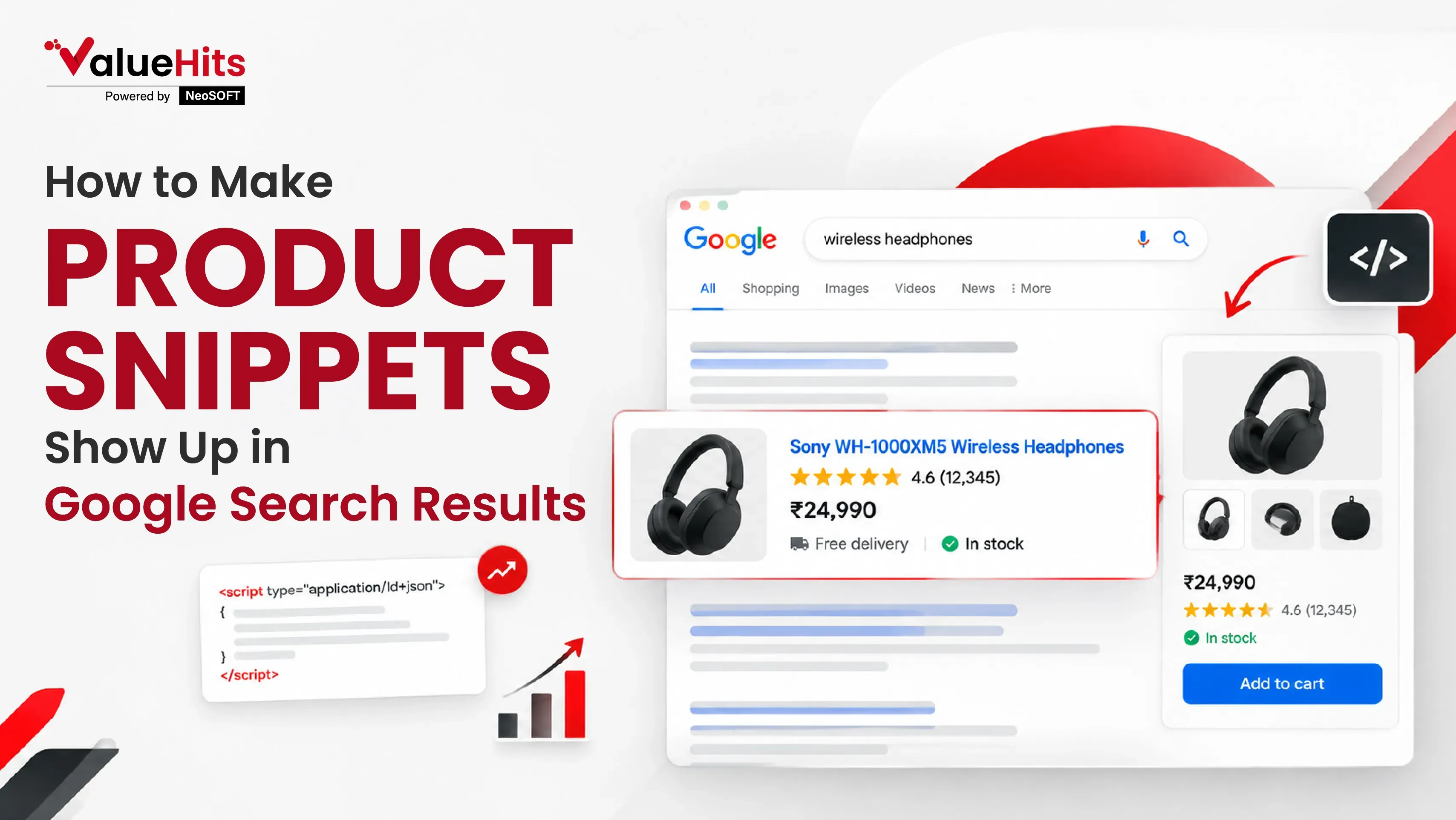
Search for running shoes and look at the results. Some show a star rating, a price, and "In stock." Others show only a title and a grey line of text. Your eye goes to the first kind. So does everyone else's. That extra detail is a product snippet, built from code sitting quietly on the page. Let us dig deeper to what is actually needed to create rich snippets that literally contribute to ranking your products.
What Are Product Snippets and Why Do You Need Them?
A product snippet is a search result carrying extra detail about something you sell, usually a price, a rating, or stock status. Google pulls this from structured data, also called schema mark-up, sitting in your page code. Think of it as a label on a sealed box, telling Google what's inside without it having to guess, and this is exactly why sites need it. Shoppers scan results in seconds. A listing with 4.7 stars and a real price gives them a reason to stop scrolling. Click rates rise, bounce rates fall because people already know the price, and AI search tools favor clean, labeled data when pulling answers. None of this changes your ranking directly. It changes how many people pick you at the ranking you already hold.
Examples of Product Snippets
Single Product Page
One item, one price such as a blender, a book, a pair of boots. Google can show price, stock status, and star rating. Most stores should start here.
Software App Page
Apps use SoftwareApplication schema instead of Product. Google shows rating count, price or "Free," and sometimes the platform. Mixing the two schema types is a common mistake.
Shopping Aggregator Page
Comparison pages listing several sellers use AggregateOffer, which lets Google show a price range and the number of offers instead of one fixed price.
How to Create Product Snippets?
Way 1: Make a Custom Widget
Plugins like Rank Math or Yoast on WordPress build markup from fields you already fill in. Shopify and WooCommerce include a basic version by default. Best for large catalogs and no coding background.
Way 2: Insert Schema Markup into HTML
Called Microdata, this weaves labels directly into existing tags, like adding itemprop="price" to the price element. It works but gets messy to maintain, and most teams have moved on from it.
Way 3: Add JSON Code
This is Google's recommended method. The code sits in its own script block and never touches your layout. Here is a working example code block for one product:
<script type="application/ld+json">{ "@context": "https://schema.org/", "@type": "Product", "name": "Trail Runner Pro Running Shoe", "image": "https://yoursite.com/images/trail-runner-pro.jpg", "description": "Lightweight trail shoe with a grip sole and cushioned heel.", "brand": { "@type": "Brand", "name": "Yourbrand" }, "sku": "TRP-4471", "offers": { "@type": "Offer", "url": "https://yoursite.com/trail-runner-pro", "priceCurrency": "USD", "price": "89.00", "availability": "https://schema.org/InStock", "itemCondition": "https://schema.org/NewCondition" }, "aggregateRating": { "@type": "AggregateRating", "ratingValue": "4.7", "reviewCount": "214" }}</script>
Each line names a fact and gives its value. The availability line produces that "In stock" label shoppers like to see.
Way 4: Apply Google Tag Manager
Push JSON-LD onto pages without touching site files, using a Custom HTML tag set to fire on product pages. Useful when your developer queue is backed up, though Google reads it slightly slower this way since it loads after the page.
Way 5: Use Google's Structured Data Markup Helper
A free point-and-click tool. Paste your product URL, pick the Products category, then click and label items on the page, the price, the rating, and so on. It generates finished JSON-LD you can copy, and it's a good way to learn the code's shape before writing your own.
JSON-LD Alone Isn't the Whole Picture
On-page JSON-LD gets you the basic price/rating snippet on the blue-link result. It does not by itself get you into the carousel-style "merchant listing" results or the Shopping tab - those pull from a Google Merchant Center feed, and your JSON-LD is used to verify that feed data rather than replace it. If a client wants the fuller shopping experience, Merchant Center setup has to happen alongside the schema, not instead of it.
How to Check Product Snippets?
Rich Results Test
Google's own checker. Paste a URL or raw code and it tells you if the page qualifies. Red errors block the snippet; yellow warnings flag missing but optional fields.
Google Search Console
Open the Enhancements section for the Products report, listing every marked-up page Google has crawled, grouped by error type. This matters when one broken template affects a thousand SKUs at once.
Why Aren't Product Snippets Showing Up?
Your Website Hasn't Been Indexed
Google can't show a snippet for a page it hasn't crawled yet. Check with URL Inspection in Search Console, then request indexing if needed.
Structured Data Is Incorrect
One typo or missing bracket breaks the whole block. A mismatched or missing GTIN between your feed and your schema is another common cause of failure — check Search Console for "products not matched" warnings, since this won't always show up as a markup error.
Either way, re-run Rich Results Test and read the errors line by line; a missing price or currency field is the usual culprit for outright breakage.
Technical Guidelines Aren't Followed
Your markup must match what visitors actually see. A code price of $49 against a page price of $79 gets the markup ignored. Marking up hidden or invisible content counts as a violation too.
Google Doesn't Support the Content Type
Not every schema type produces a visible result, and the supported list changes. Check Google's search gallery documentation before investing time in a markup type.
Multiple Markup Languages Are Being Used
A theme adding Microdata plus a plugin adding JSON-LD can describe the same product twice with different numbers. Google may pick the wrong version or ignore both. View the page source and remove all but one format.
Other Possible Reasons
Google decides per search whether a rich result helps the searcher, and it can say no even to valid markup. Manual actions and thin content quality can also block snippets. Give any fix two to four weeks before judging it a failure.
What Are the Risks of Using Product Snippets?
Fake reviews or mismatched prices can trigger a manual penalty that strips rich results site-wide, and recovery takes weeks. Showing your price also invites comparison if you're the pricier option, some shoppers will skip you before clicking. And mark-up needs upkeep, since stale prices and sold-out stock quietly break the listing until someone updates it.
Conclusion
Product snippets are one of the few SEO changes where the work is finite and the payoff is visible. Use JSON-LD, mark up only the fields Google displays, test before publishing, and keep the data honest.
Real cases depicting how Value Hits helped its clients
ValueHits helped WaveTrac, a UK car differentials brand, grow organic revenue by 55.71% in four months through cleaner, structured content.

Boost Your Product Visibility with ValueHits
Want your products actually standing out in search instead of getting lost in the scroll? That's what ValueHits does day in and day out for online stores. Get in touch for a free audit and see what's holding your listings back.
Google vs. Microsoft AI Max Campaign: Who Wins the Search Battle?
November 2, 2026
Microsoft recently made a big, important move by launching AI Max for search campaigns globally,
Google Ads for Ecommerce: 8 Strategies to Increase Sales & ROAS
October 27, 2026
Making the transition from browsing user to buyer can be the difference between success and failu
Citation Gap Strategy: Get Your Brand Cited in AI Search
October 21, 2026
Ten blue links were once the standard search result.

Hardik Mody
Senior Manager - Digital Marketing atValueHits
Hardik Mody is a Senior Manager in Digital Marketing. He plans and coordinates the marketing activities of ValueHits, a full-service Digital Marketing Agency in Mumbai, India. With his experience and Expert knowledge in the field, he identifies potential customers and develops marketing campaigns. Also, he is efficient enough to meet the client’s requirements and well-organized in handling multiple tasks.